From Proxmox server, click local (your serve name) on the left side menu. Then from the submenu click CT Templates. This will allow you to search through Proxmox OS Pre setup Containers.
From Proxmox server, click local (your serve name) on the left side menu. Then from the submenu click CT Templates. This will allow you to search through Proxmox OS Pre setup Containers.
Creating LXC CT on Proxmon
Now that we have downloaded the Ubuntu image, we can now build our CT. First thing we need to do is click on the Create CT button on the top right of your Proxmox dashboard.
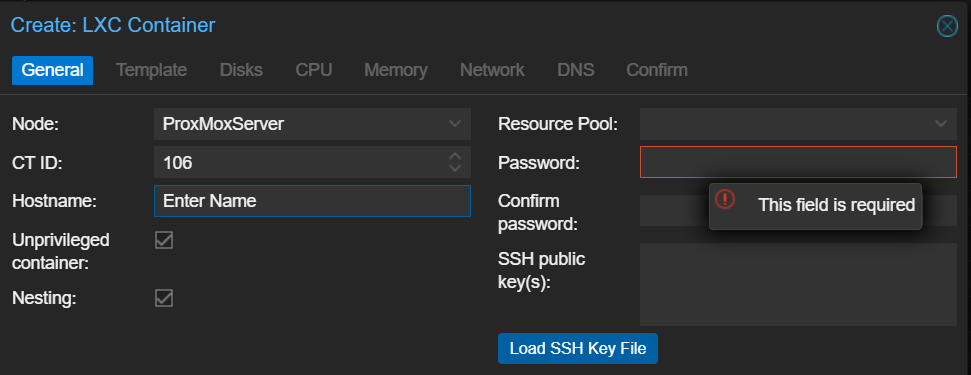
Enter your hostname. This should be something that describes the CT. Then enter a password this will is the password for the server login. User = root Pass = what your enter.
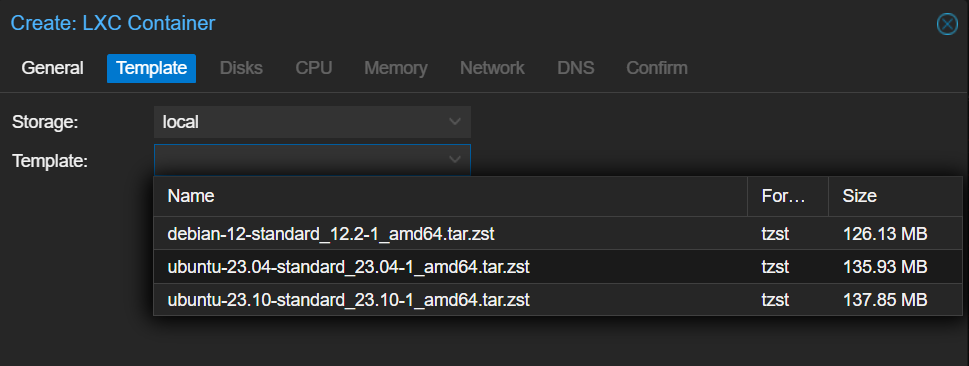
Next, select Template tab Then select the image we just downloaded front he dropdown menu.
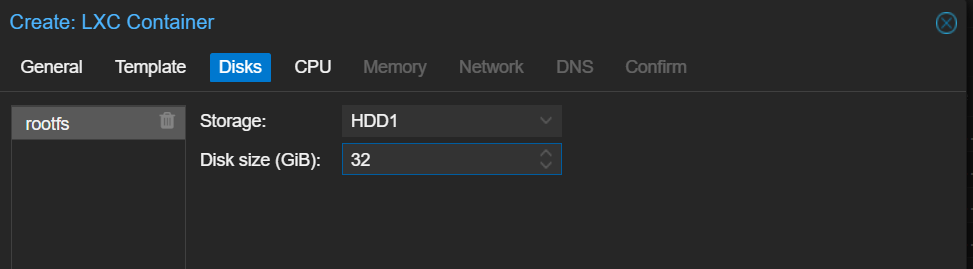
Select your storage device and depending on what you are doing with this CT input the amount of Storage you will need. I will put 32 GB.
now select how many CPU core you need. I will select 1.
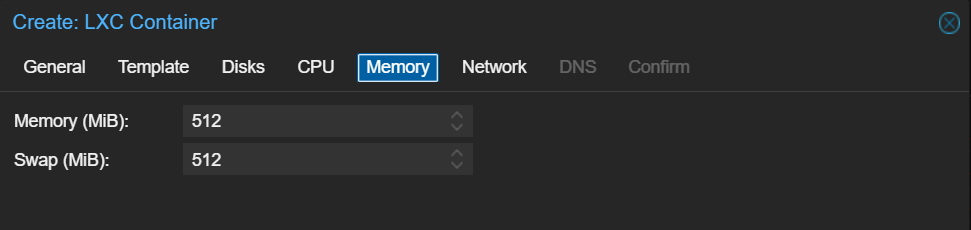
New we need to set the amount of RAM you would like the container to have. Below that is the amount of SWAP Memory you would like. I leave mine at the default 512mb.
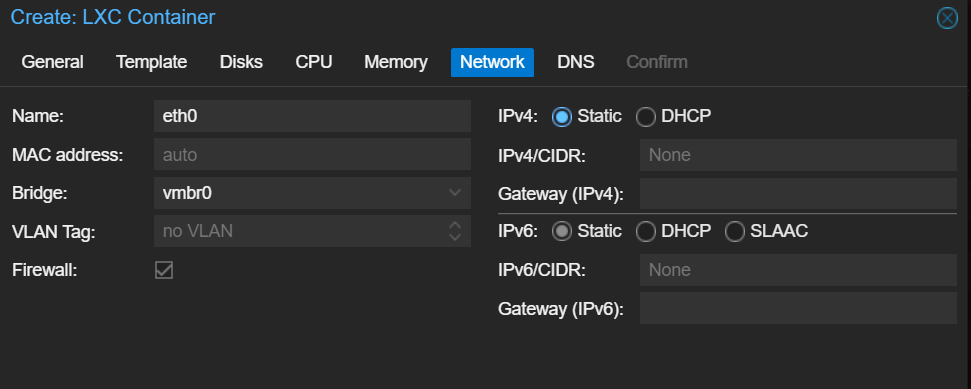
Now we need to set up the networking settings. If you have a static IP address you can enter it in. Otherwise, we need to set, both the IPV4 and IPV6, to DHCP. After this you can just hit next on DNS; unless, you have your own dns server or pi-hole and hit complete with on the confirm tab.
This will take a minute or so to create the CT. So if your CT has not started right click the container and click start. Now we can Double click the new CT and login.
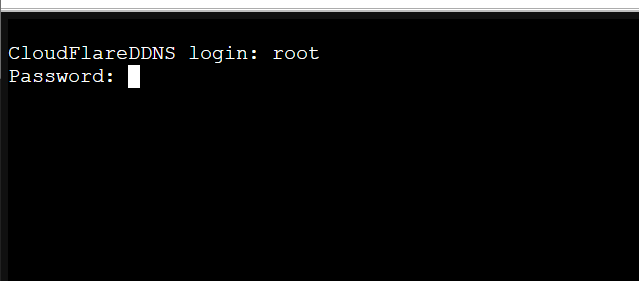
From the Command prompt, enter the username root. hit enter. Enter the password your set during the setup. You have now setup and logged into your new container. If you would like to the command below will update and upgrade your container.